 KidGuard
Manage your child's Android phone from a browser
One APK file, no account, no server to set up. KidGuard runs on your child's phone as Device Owner (the Android management role, like a company-managed phone). Rules run on the phone itself, even when it is offline.
Download it on your child's phone, then follow one of the 4 install methods. Nothing is locked until setup is finished.
- Every change can be undone
- The parent page runs in a browser
- No data goes to the cloud unless you turn it on
Enough for everyday use
Parents change the rules on the web page, and the child's phone applies them right away.
Daily time limit
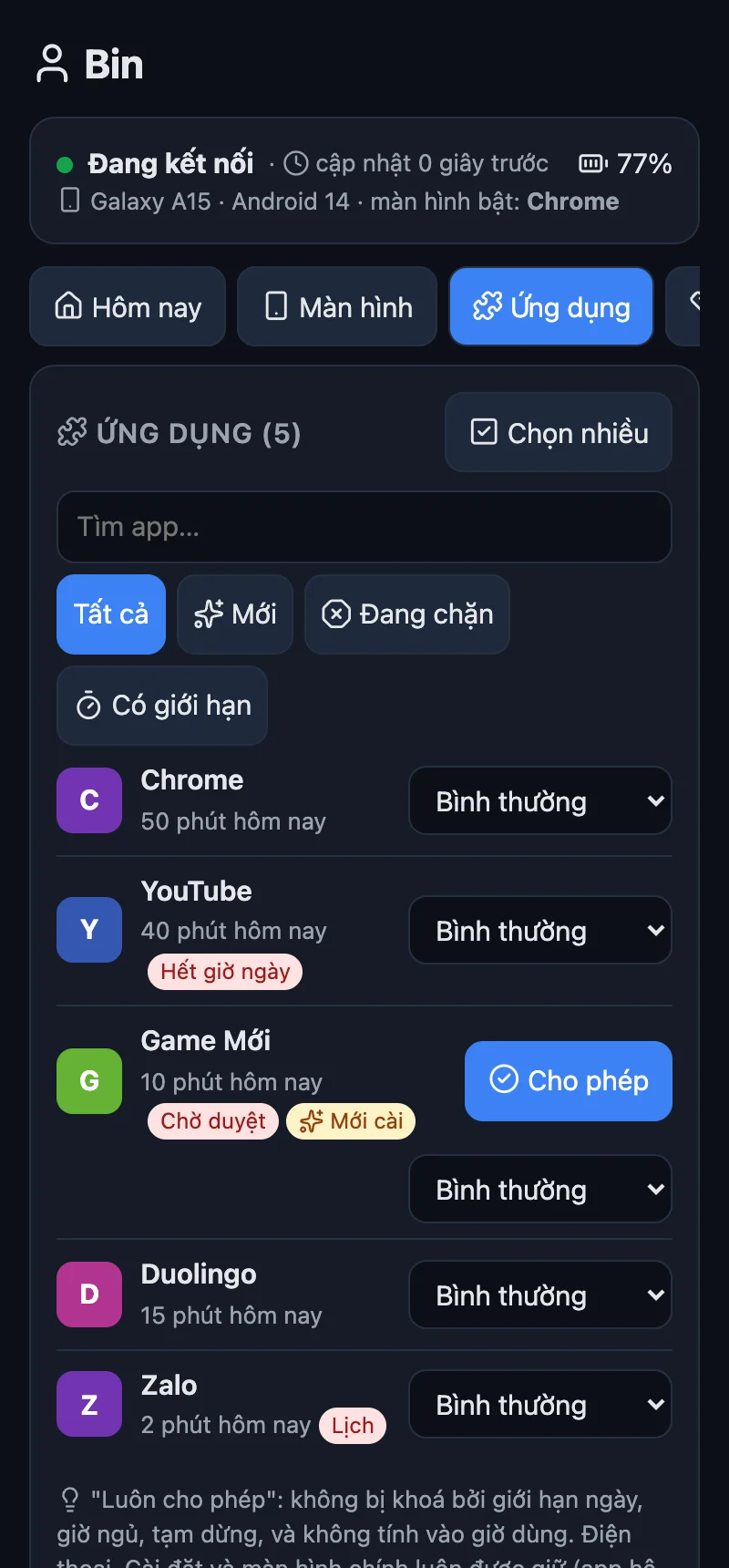
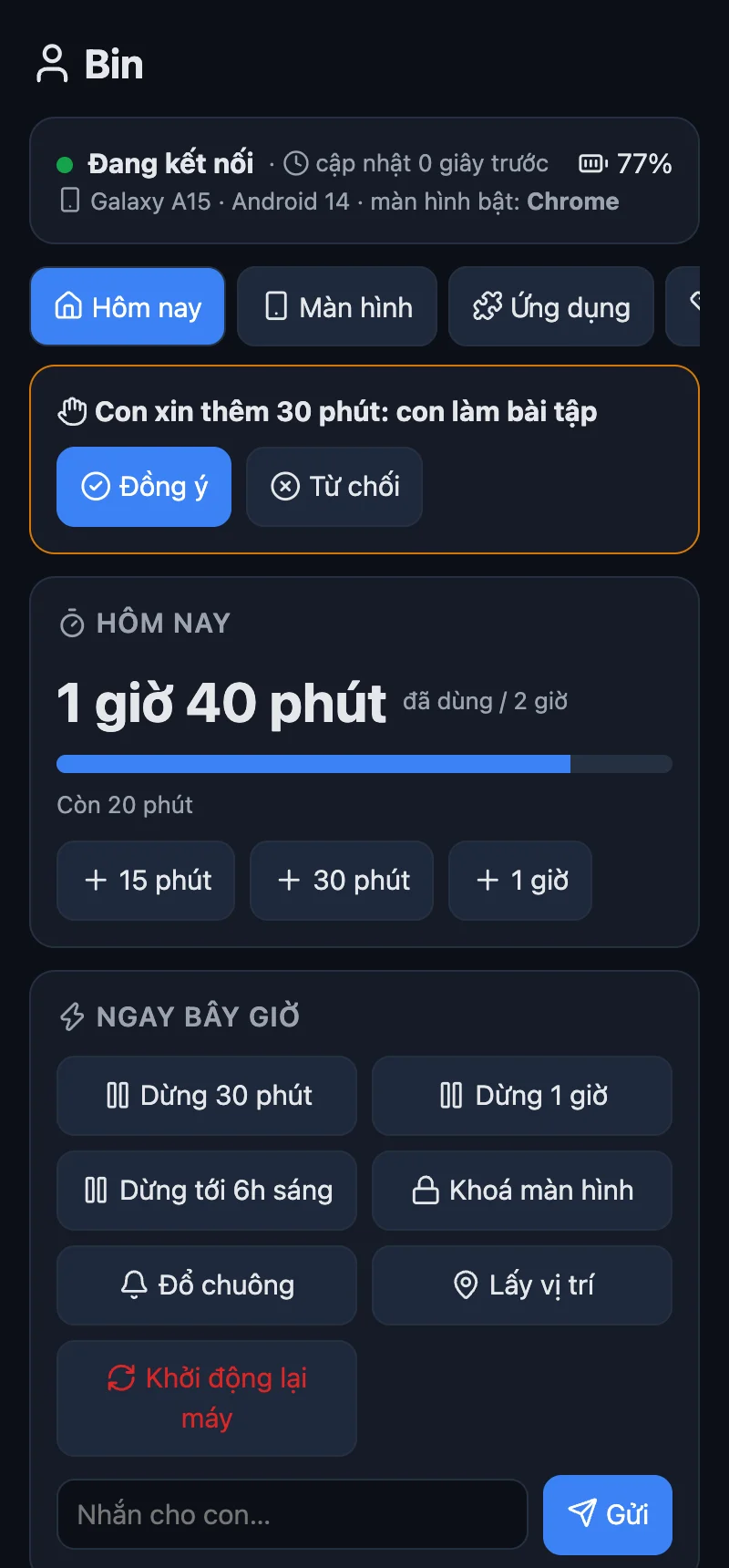
One limit for every day, or a separate one for each weekday. When time is up, every app (except "Luôn cho phép", Always allow) is locked until midnight. Add 15 / 30 / 60 minutes for today.
Child asks for more time
The child taps a button on the phone (15 / 30 / 60 minutes, with a reason), and the parent chooses Approve or Deny.
Per-app control
Normal, N minutes per day, Blocked or Always allowed. Select several apps to change them at once. New apps can stay locked until a parent approves them.
Bedtime and school hours
A bedtime for each day, plus extra time windows on chosen days (school hours Monday to Friday). Windows may cross midnight. There is a Pause now button: 30 minutes, 1 hour, until 6 am.
Location
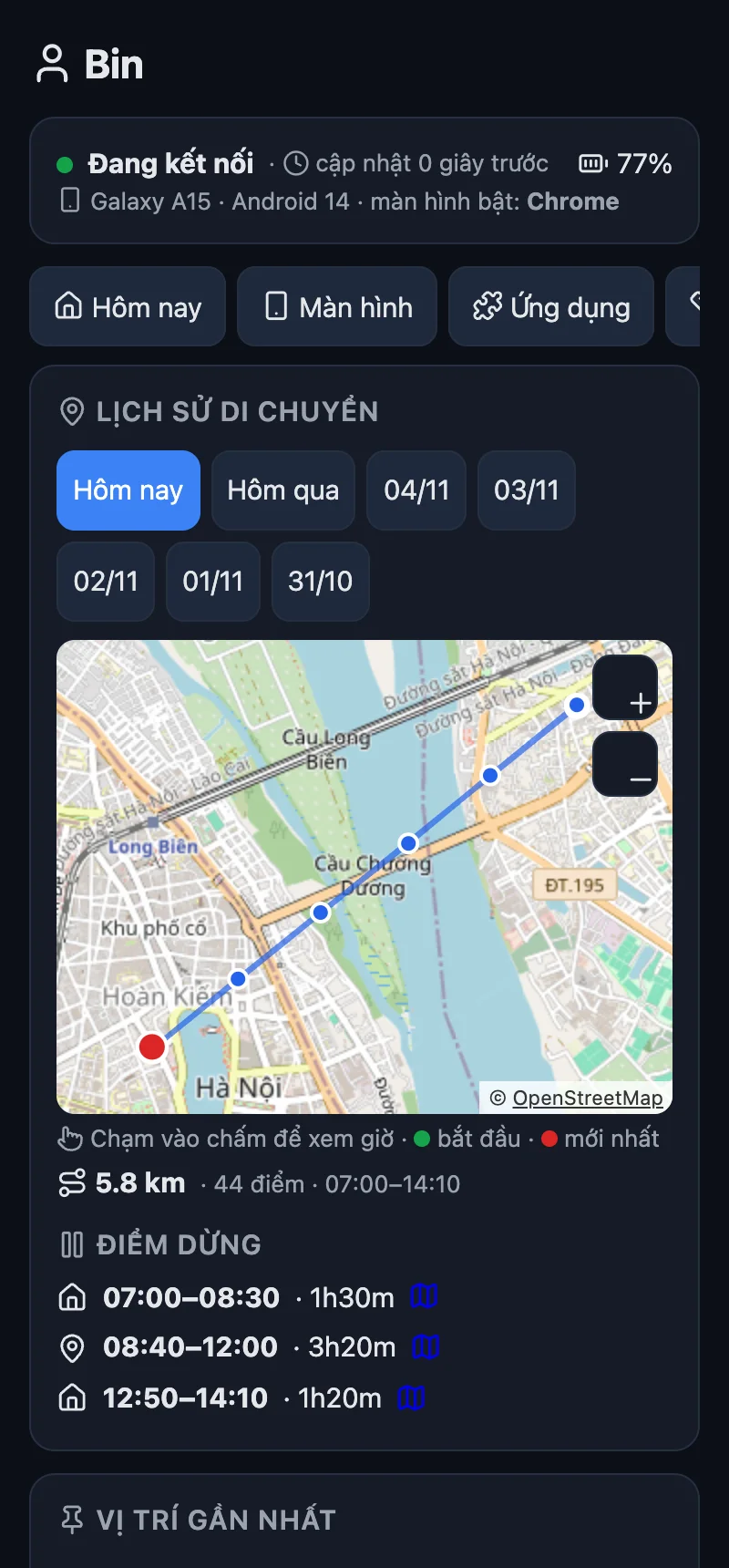
Locate now, force location on (the child cannot turn it off), 7-day history on an OpenStreetMap map, with stops.
Usage history
7 days of screen time, and the most used apps each day.
Screen view and control
Watch your child's screen live on the page (Android 11+, about 3 frames per second), tap, swipe, type. The child sees the message "Phụ huynh đang xem màn hình" (A parent is watching the screen).
Hard to bypass
Blocks uninstalling apps, force stop, factory reset from Settings, Safe Mode, adding users, changing the clock, airplane mode. A watchdog restarts the app automatically. Optional: safe DNS filter, block app installs, block USB debugging.
Quick commands
Lock the screen, ring the phone, show a full-screen message, reboot the phone.
The parent page and the child's phone
The parent page is plain HTML served by the child's own phone (the UI is in Vietnamese for now).
4 ways to install, pick what suits you
Android only lets an app become Device Owner while the phone has no accounts (Google, Samsung, Xiaomi...). Remove the accounts from your child's phone first, install, then sign back in, and everything comes back.
📱 On the phone itself Easiest
- Install the APK, open KidGuard, tap Tự cài không cần máy tính (set up without a computer).
- Turn on Developer options, Wireless debugging, choose Pair device with pairing code.
- Type the 6 digits into KidGuard's notification. It does the rest and turns Wireless debugging off when done.
🔳 Scan a QR code
- On the welcome screen, tap the empty area 6 times.
- Scan the QR code.
- The phone downloads KidGuard over Wi-Fi and installs it. Open it and go through the short checklist.
🌐 Browser and USB cable
- Turn on USB debugging on your child's phone and plug the cable into the computer.
- Open the install page and click Connect.
- No need to install adb.
⌨️ Command line
Run ./setup.sh (downloads adb if missing, add -y to skip the questions) or on Windows: powershell -ExecutionPolicy Bypass -File setup.ps1. These files are in the source repository.
After installing
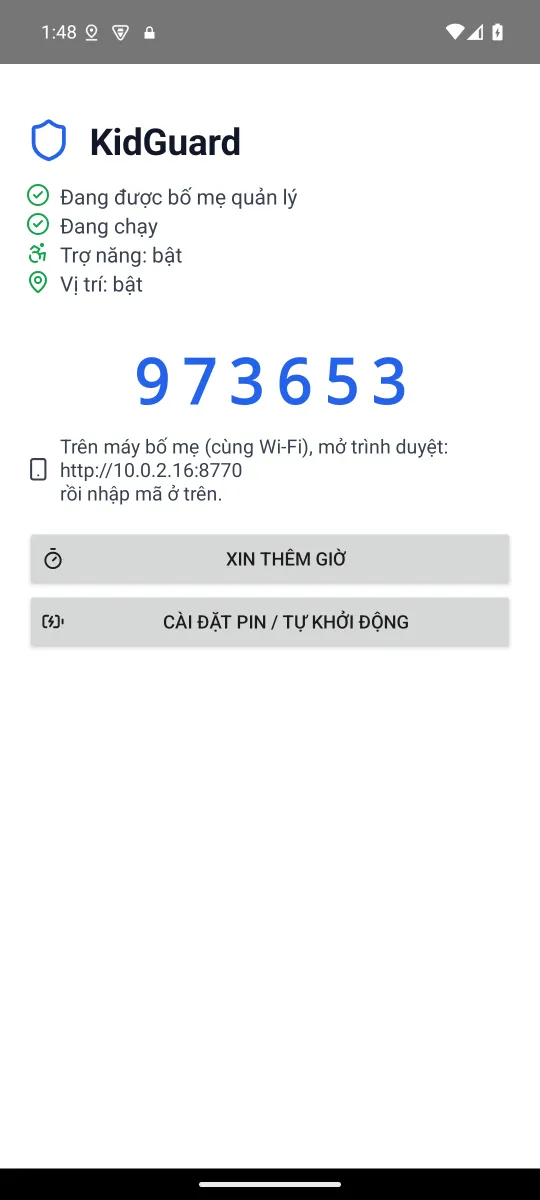
The child's phone shows a 6-digit code. On the parent's phone (same Wi-Fi) open http://<phone IP>:8770, enter the code, then go to Cài đặt (Settings) and set a parent PIN (without a PIN the phone refuses to pair any more browsers).
Xiaomi, Oppo, Vivo, Samsung
On your child's phone tap Cài đặt pin / tự khởi động (battery / autostart settings) and let KidGuard run in the background, otherwise the manufacturer may kill it.
Remote control: Tailscale or Cloudflare Worker
At home the parent page connects directly over Wi-Fi. Away from home, pick one of two options (or use both).
Tailscale Recommended
A private network. The page talks straight to the phone, so responses are instant. Nothing to deploy.
- Make a free account at tailscale.com, go to Settings, Keys, Generate auth key: turn Reusable on, Ephemeral off.
- In the parent page (on home Wi-Fi): Cài đặt, Điều khiển từ xa qua Tailscale (Settings, remote control via Tailscale), paste the key, tap Bật (On).
- Your child's phone downloads the official Tailscale app (SHA-256 checked), installs it, joins the network and hides the app. About a minute.
- On the parent's phone install Tailscale, sign in with the same account, and open the address
http://100.x.y.z:8770shown on the card.
The key is only accepted on home Wi-Fi and stays on the child's phone. The child cannot turn off the VPN or uninstall Tailscale. The child will see a key icon in the status bar (Android always shows it when a VPN is active).
Cloudflare Worker (advanced)
A small Worker (free plan) relays commands, state and the live screen. Frames stay in the Worker's memory only and are not stored. Open it in any browser, no app needed on the parent's phone.
- Deploy the Worker (needs Node):
cd worker && npm install && npx wrangler login && npx wrangler deploy - In the parent page (on home Wi-Fi): Cài đặt, Điều khiển khi khác mạng (Settings, control from another network), paste the Worker address, tap On.
- Open the link that appears on the parent's phone.
Commands reach the phone after about 20 seconds (about 60 seconds when the screen is off). The child sees nothing extra.
| Tailscale | Cloudflare Worker | |
|---|---|---|
| Setup | paste a key, nothing to deploy | deploy a Worker (needs Node) |
| Speed | instant, direct to the phone | commands ~20 s (~60 s with the screen off) |
| Parent's phone | needs the Tailscale app (Android / iPhone) | any browser |
| Child sees | a key icon in the status bar | nothing |
Plainly: the child's side cannot exist on iOS
Apple does not let third-party apps view the screen, control the device or lock other apps, so an app like KidGuard cannot exist on your child's iPhone or iPad.
If your child uses an iPhone / iPad
Use Apple's built-in, free tools: Screen Time and Family Sharing (limits, downtime, app limits, adult web filter, purchase approval, requests for more time) and Find My for location.
If you (the parent) use an iPhone
That works: your child uses Android and you open the parent page in Safari. At home you only need the same Wi-Fi. Away from home, install Tailscale from the App Store (recommended), or use the Worker, which only needs a browser.
Good to know
Can the DNS filter cut off my child's Internet?
The filter uses Android's Private DNS. If the filter's server refuses, or the network has Internet but blocks DNS-over-TLS for 90 seconds, KidGuard falls back to normal DNS for 30 minutes and the parent page says why, so the child does not lose the Internet because of the filter.
Can the child uninstall KidGuard?
Not from Settings. But a factory reset from the hardware keys (recovery mode) still works: KidGuard is then gone and the parent page shows "mất kết nối" (disconnected).
Does it work on older Android?
Android 8 and up. Live screen view and remote control need Android 11+. On Android 8 to 10, the child can force stop KidGuard (it starts again after a reboot). The "on the phone itself" install also needs Android 11+.
Why do some apps show a black screen?
Apps that mark their screen as secure (banking and similar) appear black when viewed remotely.
Is any data sent anywhere?
Not by default: the parent page is served by your child's own phone. Only if you turn on the Cloudflare Worker do commands and state go through your own Worker (screen frames stay in memory, not stored). The Tailscale key does not go through the Worker.
Is it secure?
Each browser pairs once with a 6-digit code shown on the child's phone, and pairing more needs the parent PIN. The PIN is stored as a salted hash and is never sent back to the page. Note: on home Wi-Fi the page runs over plain HTTP (the access code travels in a header), so only use it on a network you trust.
Found a bug or have an idea?
Send it to GitHub Issues. How the parts talk to each other is described in docs/protocol.md.
Ready to try?
Download it, install it on your child's phone, open the parent page. If you change your mind, Gỡ quyền quản lý (Release) and you are done.
